
🎮 Naruto - Clash of Ninja 2
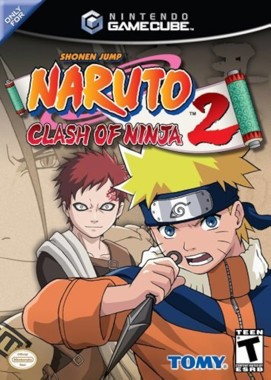
Naruto - Clash of Ninja 2
Nintendo GameCube · Native play via Dolphin
1. Download KhoGameHub PC Launcher (once)
2. Run it (next → next → finish)
3. Click Play on PC — game launches automatically
4. Requires Dolphin Emulator to be installed


Open Related Rooms
Finding any related Room...
Description
Step into the thrilling world of Naruto with Clash of Ninja 2, where fierce battles and strategic gameplay await. Dive into a dynamic 3D fighting experience featuring your favorite characters, each with unique abilities and techniques. Engage in local multiplayer for exhilarating showdowns or embark on the single-player adventure to unlock new content. The vibrant graphics and fast-paced combat will keep you on your toes as you master combos and unleash powerful jutsu. Relive the excitement of Naruto’s universe as you showcase your skills and defeat formidable foes!
Tags: fighting multiplayer local action arcade classic fast-paced single player🟣 GameCube Play Guide
- Install KhoGameHub Launcher (once only) and Dolphin Emulator — then click Play on PC (Dolphin), the game opens automatically.
- Android: Install the KhoGameHub app → tap Open in App to play directly.
- Controls: Plug in a gamepad (Xbox/DualShock both work), Dolphin detects it automatically. Switch controller type using the toggle button on the page.
💾 Saving
Dolphin uses a virtual memory card, saving automatically per-game like a real GC. Save state: F1–F8 (save slot) / Shift+F1–F8 (load slot).
⚙️ Dolphin Settings
- Graphics → Backend: Select Vulkan (best) or Direct3D 12/11 if Vulkan fails.
- Internal Resolution: 2x Native (1080p) or 3x for 1440p/4K displays — much sharper than native GC.
- Anti-Aliasing: MSAA 2x or 4x to remove jagged edges.
- Anisotropic Filtering: 4x or 16x for smoother distant textures.
- Widescreen Hack: Graphics → Enhancements → Widescreen Hack → enable for 16:9 (some games may show artifacts).
- Shader Compilation: First run may stutter — this is normal, Dolphin is building a shader cache. Subsequent runs will be smooth.
🎮 Controller Setup
Controllers → Port 1 → Standard Controller → Configure. For DualShock/DualSense: enable SDL as backend for full button support. Analog triggers (L/R) need correct axis mapping.
🖥️ Hardware Requirements — Dolphin
⚠️ Dolphin is the heaviest emulator of the four — GC/Wii uses high-speed PowerPC CPU, requiring strong IPC. More cores help less than high single-thread clock speed.
| Component | ⚠️ Minimum (1x native) | ✅ Recommended (2x–3x upscale) |
|---|---|---|
| 🪟 Windows / 🐧 Linux | ||
| CPU | Any 64-bit x86-64 / AArch64 (4+ cores) | 4+ cores · higher clock speed = better |
| RAM | 2 GB | 4 GB+ |
| GPU | Direct3D 11.1 / OpenGL 4.4 / Vulkan 1.1 (onboard OK) | Dedicated GPU · Vulkan 1.1 preferred |
| OS | Windows 10 1903 64-bit / Linux / macOS 11+ | Windows 10/11 64-bit (latest) / Ubuntu 22.04+ |
| 🤖 Android | ||
| SoC | 64-bit AArch64 · Android 5.0+ · OpenGL ES 3.0+ | Snapdragon 700+ · Android 9+ · Vulkan 1.1 |
| RAM | 3 GB · Android 5.0+ | 4-6 GB · Android 9+ |
* Dolphin is significantly heavier than PCSX2. Games like F-Zero GX and Metroid Prime demand strong CPUs. First-run shader stuttering is normal — smooth after cache is built.
Comments(0)